

Banners
Image blocks on the home page and in categories — placement, validity, and where they lead.
A banner is an image with a link. It does one job: send the customer somewhere specific — a sale category, a campaign page, a new brand.
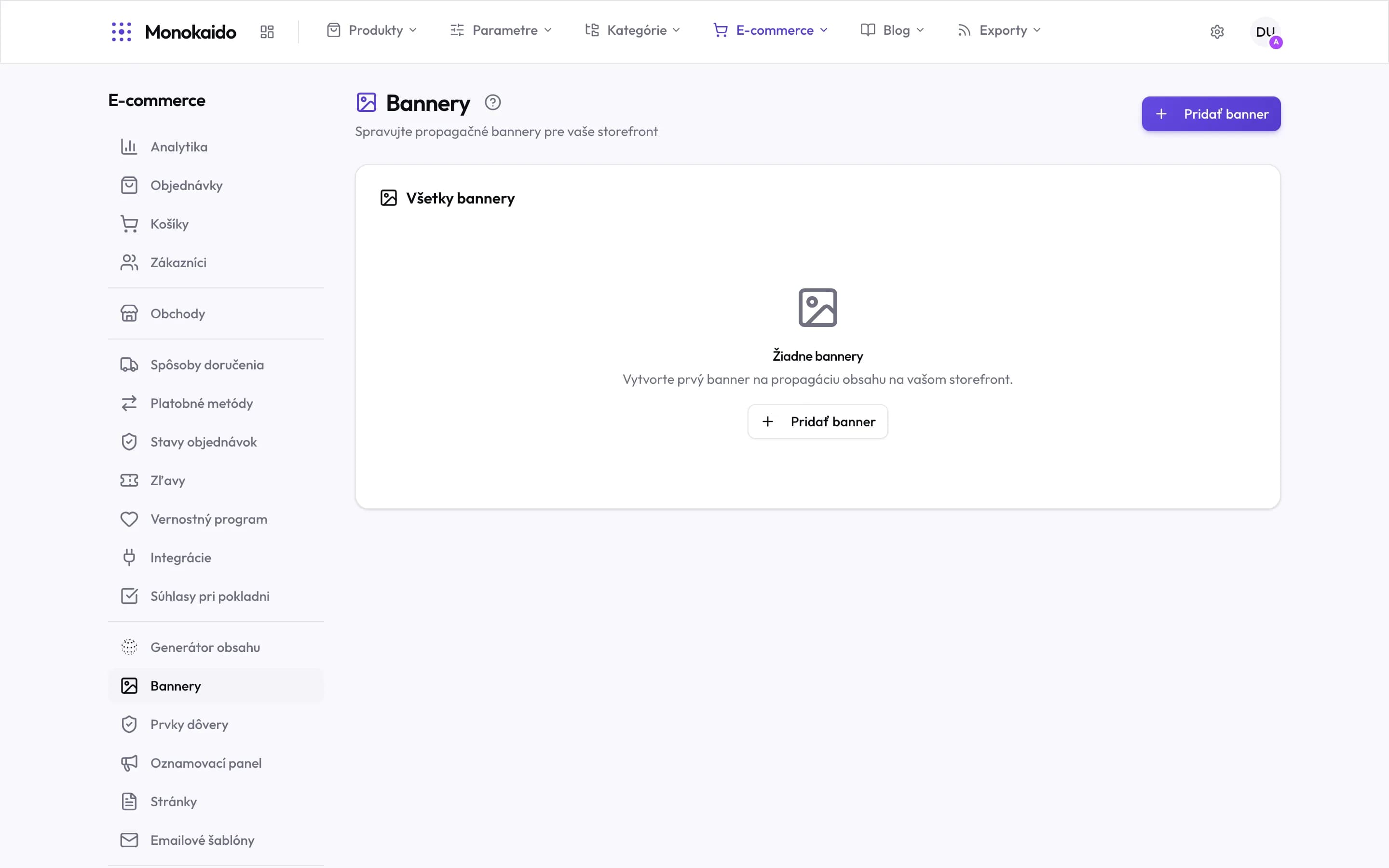
Controls on this screen
- Add banner — A new promotional banner.
- All banners — One list for the whole shop. Placement and dates are set on the banner itself.
- Empty state — The shop works fine with no banner — a banner is marketing, not part of the setup.
- Where it lives — In the left ecommerce menu, in the content group with trust elements and pages.
Configuring a banner
| Field | What it does | Note |
|---|---|---|
| Image | The artwork itself. | Upload a mobile version too — a cropped desktop banner is usually unreadable on a phone. |
| Placement | Where the banner appears. | Home page, a category, a sidebar. |
| Target | Where the link leads. | Always check the target exists and is active — a banner into an empty category is worse than none. |
| Validity | The dates it is shown between. | Always give a campaign banner an end date. |
| Order | Its position in a multi-banner block. | |
| Alt text | A description of the image. | For screen readers, and for when the image fails to load. |
Banners in a shop on Storefront v2
In a shop on Storefront v2, where banners show and how large they are is decided by the Hero banner and Banner grid sections in Storefront design. Each section takes the banners of one location and sets their height, the number of columns and the text. The banner itself — image, target, validity — is set here.