

The team and roles
Inviting a colleague, what each role may do, removing access, and accepting an invitation.
On this page
Monokaido is multi-company: one person can belong to several companies and hold a different role in each. This screen manages one company — the one you currently have switched to.
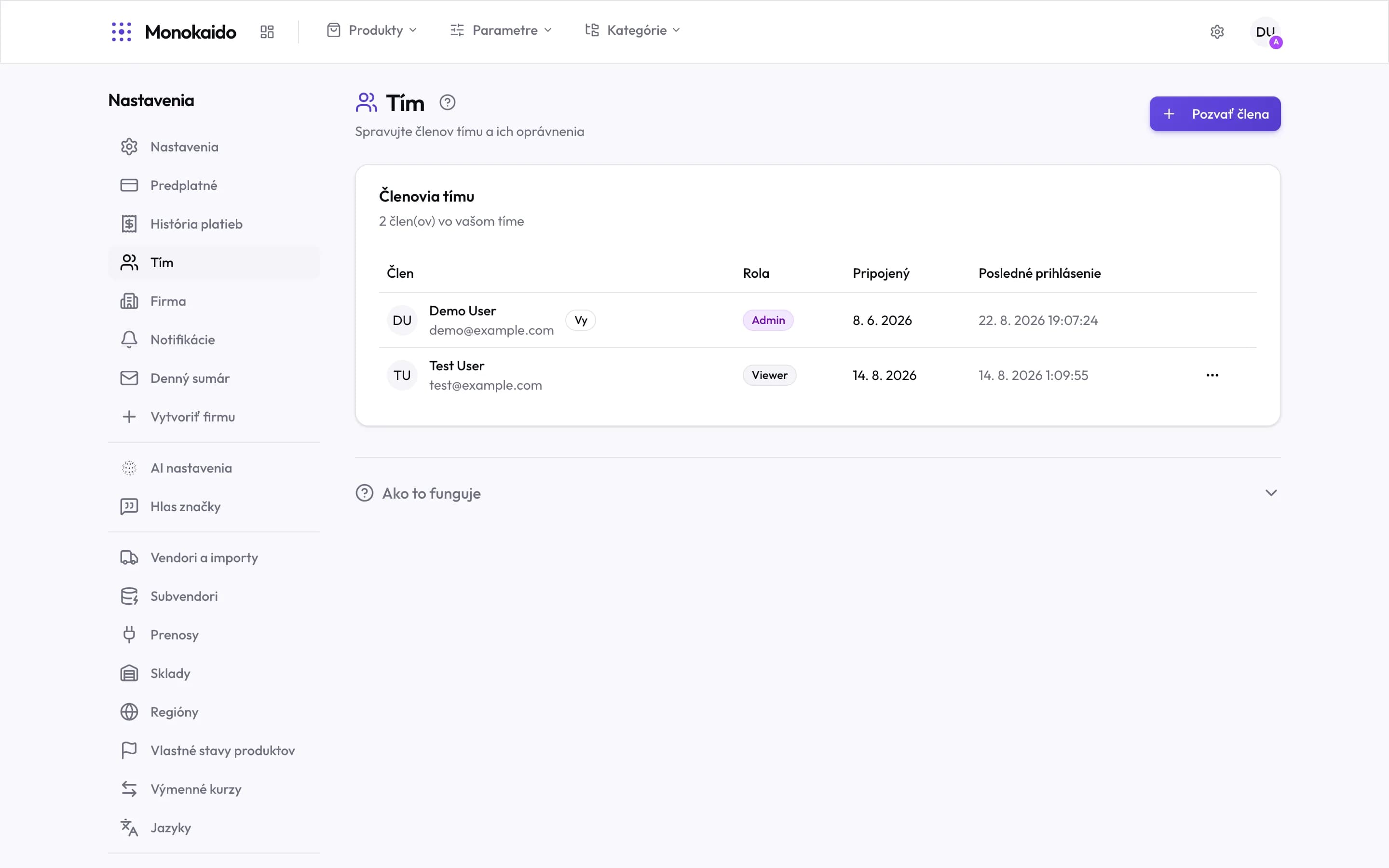
Controls on this screen
- Invite member — Sends an invitation by email. You choose the role as you invite.
- Member count — Compare it with your package limit — inviting is disabled once you reach it.
- Role — Admin, Editor or Viewer. Changeable at any time.
- The "You" marker — Your own row. You cannot change your own role.
- Joined — When the member accepted the invitation.
- Last sign-in — The quickest way to find accounts nobody uses any more.
- Row menu — Change the role, or remove access.
Three roles
| Role | What they may do | Typically |
|---|---|---|
| Admin | Everything — company settings, the subscription, AI providers, the team, and irreversible operations. | The catalogue owner, the technical administrator. |
| Editor | Create and edit data: products, categories, parameters, rules, merging. | The catalogue manager. Sees no billing and changes no company settings. |
| Viewer | Read only. | A colleague in marketing, an outside consultant, a client. |
Inviting a colleague
Invite member
You enter an email address and pick a role. The invitation goes out at once.
Your colleague accepts
The email takes them to the acceptance screen. If they have no account yet they set a password; if they already use Monokaido, the company is simply added to their existing account.
They appear in the list
From then on they have access according to their role, and the Joined column carries the acceptance date.
Removing access
The row menu (three dots) offers remove access. A removed member loses access to this company immediately; their account and their other companies are untouched.
What remains is everything they did. Merge logs, AI logs and transfer logs carry the name of the person who performed the action, and removing access does not erase that record.
Why is “Invite member” disabled?
Your package allows as many members as you already have. The count sits above the list; the limit is in Settings → Subscription (Opens in a new tab).
Can I change my own role?
No. It prevents the case where the last admin removes their own rights and the company is left without one. Ask another admin.
My colleague did not receive the invitation.
Check spam, and check the address for a typo. The invitation can be sent again from the same screen.
Does a Viewer see prices and margins?
Yes — a Viewer sees what an Editor sees, they simply cannot change anything. If commercial figures must stay hidden, do not invite that person to the company.