

Transfers to other systems
Handing products to an ERP or a shop, the direction, the schedule, and the live run.
A transfer sends enriched product data outward — to an ERP, to a shop on another platform, to a system you already run. It is the inverse of an import: there data is gathered, here it is handed over.
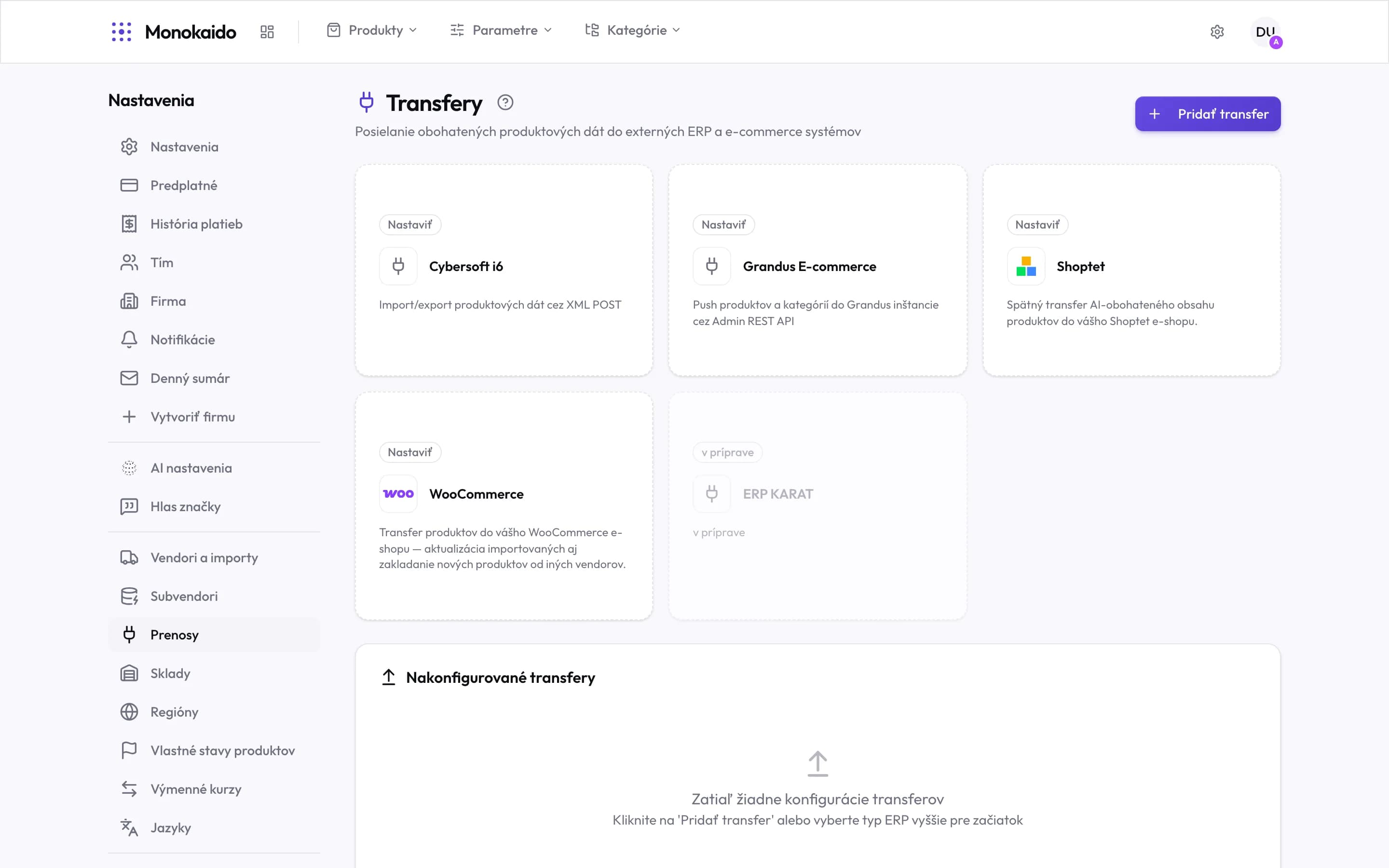
Controls on this screen
- Add transfer — Creates a configuration. Clicking a tile starts the same thing.
- Configure — A tile with this label is ready to use.
- Cybersoft i6 — Two-way product data exchange over XML POST.
- Grandus E-commerce — Pushes products and categories to a Grandus instance through its Admin REST API.
- Shoptet — Sends AI-enriched content back to your Shoptet shop.
- WooCommerce — Updates existing products and creates new ones.
- In preparation — A system that cannot be connected yet. The tile is not clickable.
- Configured transfers — Your actual connections. An empty list means nothing is being sent anywhere.
How a transfer works
Choose the target system
The tile decides how it communicates and what can be transferred.
Enter the credentials
The target system's address and key. From its administrator.
Set the scope and schedule
Which products, and how often.
Watch it run
The live view is a screen of its own; the history is in Transfer logs.
The product never appeared in the other system.
Check the Transfer logs — they carry the target system's reply, including a rejection for a missing field.
Can I control which products are transferred?
Yes, through the transfer's scope, and by excluding a particular vendor.
My system is not in the list.
Tiles marked in preparation are being built. For anything else, the route is the API.