

Signing in and your account
Signing in, registering, a forgotten password, and what to do when the system logs you out mid-task.
On this page
The account is yours; the company is shared. One account can belong to several companies and you switch between them without signing out — worth knowing before you create a second account you do not need.
Signing in
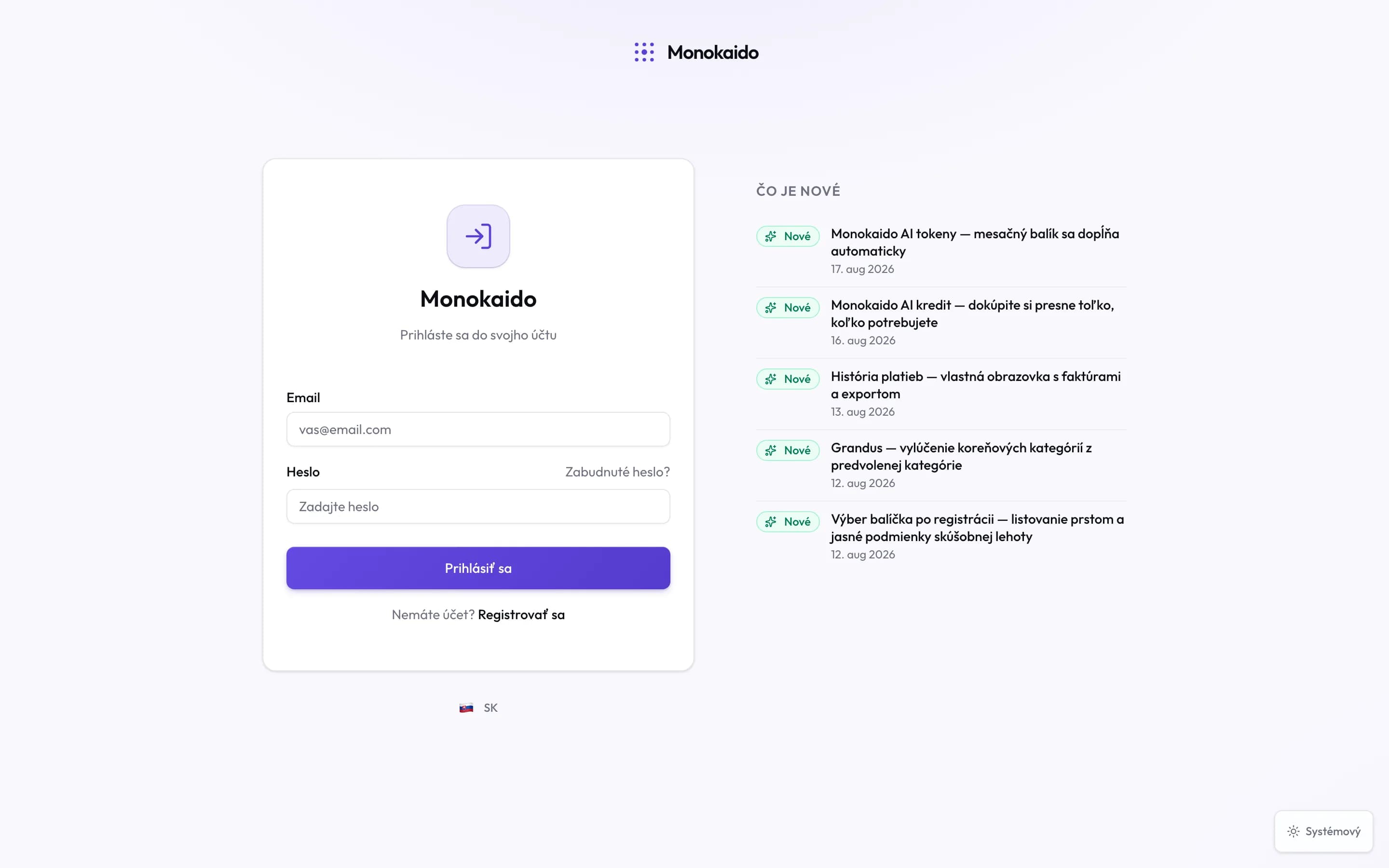
Controls on this screen
- Email — The address the invitation went to, or the one you registered with.
- Password — If you are unsure, do not guess — the link next to it is faster.
- Forgot password? — Emails you a link for setting a new one.
- Sign in — You land on the dashboard of the company you used last.
- Register — For a new account only. Joining an existing company requires an invitation from its admin.
- Language — Switches the interface language before you sign in.
- Light/dark mode — Once you sign in, the choice is saved to your account.
- What's new — The latest changes to the application. The full list is under Changelog once signed in.
Registering
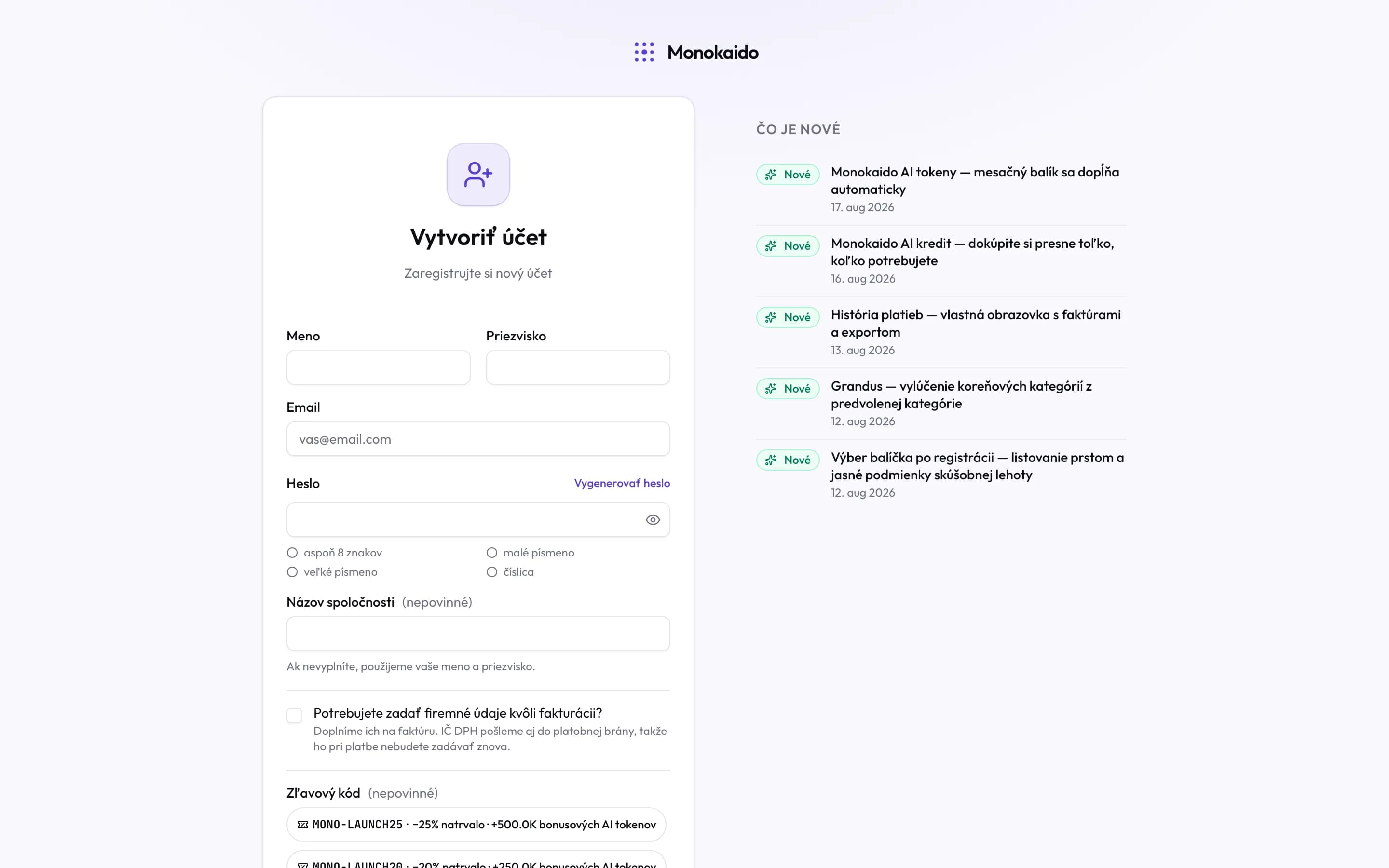
Controls on this screen
- Email — Your login, and where the welcome email with the link to set a password goes. Harder to change later than anything else here.
- Phone number — Required. We use it when starting the account and when sorting out payments.
- Discount code — Optional. Offered codes can be picked by clicking; a code from a link fills itself in. It applies to both the subscription and bonus AI tokens.
- Company details — Tick it to add the company name and billing details. They go onto the invoice, and the VAT ID is passed to the payment gateway so you do not enter it again at checkout.
- Create account — The account exists at once and signs you in. No password at registration.
- What you get — How many days you get free, and whether that needs a payment card.
- Sign in — If you already have an account.
Registration asks for your email address, a phone number and an optional discount code only. The company and invoicing details go under "Do you need company details for invoicing?" — or later, in settings. The account is created as soon as you send the form and signs you in right away. Below the form are a video about what Monokaido does, a finished product example and the packages with their prices.
After registering, the application takes you straight to setting up the company — the package and the basic details.
Setting a password from the email
To sign in on another device, your computer for example, set a password with the Set a password button in the welcome e-mail. The link works for 3 days; after that, use "Forgot password?" below. Setting the password signs you out on your other devices — on the phone you then sign in with the password.
If the app asks you to confirm with your password before you have set one (when adding a passkey, for example), choose Send a link to set a password in that window.
If the address already has an account, no second one is created — sign in instead.
A forgotten password
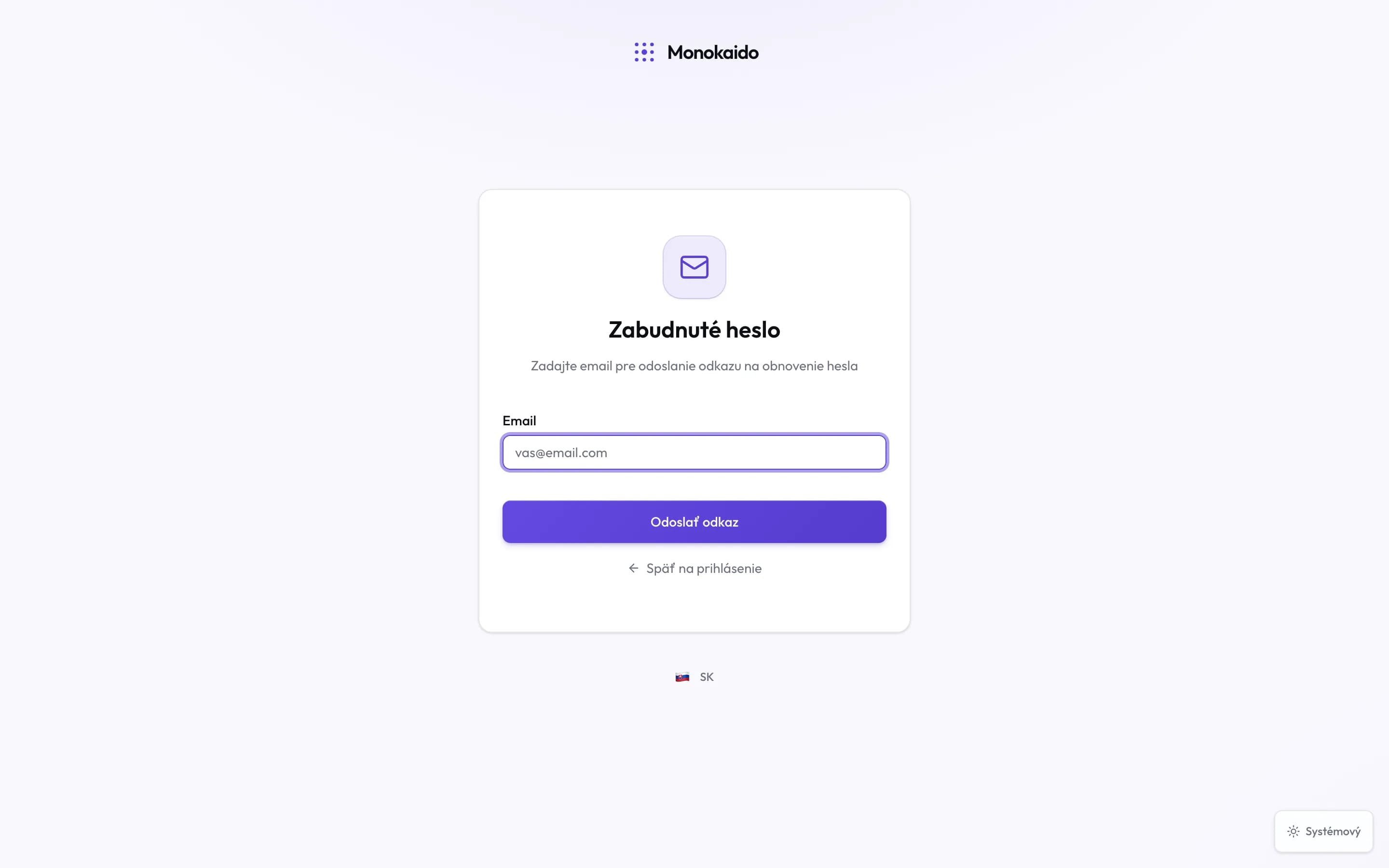
Controls on this screen
- Email — The address you sign in with.
- Send link — The response is the same whether the address exists or not — deliberately so.
- Back to sign in — For when the password comes back to you.
Enter your email
The same one you sign in with.
Open the email and follow the link
If nothing arrives within a few minutes, check spam. The address has to belong to an existing account.
Set a new password
The same rules as at registration apply. The link works once.
Being signed out mid-task
After a long idle spell the system signs you out and says so: You have been logged out due to inactivity. It is not a fault and nothing is lost — but a change you had not saved does not save itself.
Can one account belong to several companies?
Yes — the system is built for exactly that. You switch companies in the top bar; see Finding your way.
How do I change a password I still know?
In your account settings. The forgotten-password route works too, but it is the long way round.
A colleague cannot sign in — what should I check?
Whether the invitation has expired (the date is shown under Team) and whether they are using the same address the invitation went to.