

Custom product statuses
Your own statuses beyond the built-in ones — what they are good for and where they filter.
Available to roles AdminOpen in the app (Opens in a new tab)
The built-in statuses (draft, published, archived) say whether a product is finished. Your own statuses say which step of your process it is at — "waiting for photos", "parameters checked", "for approval".
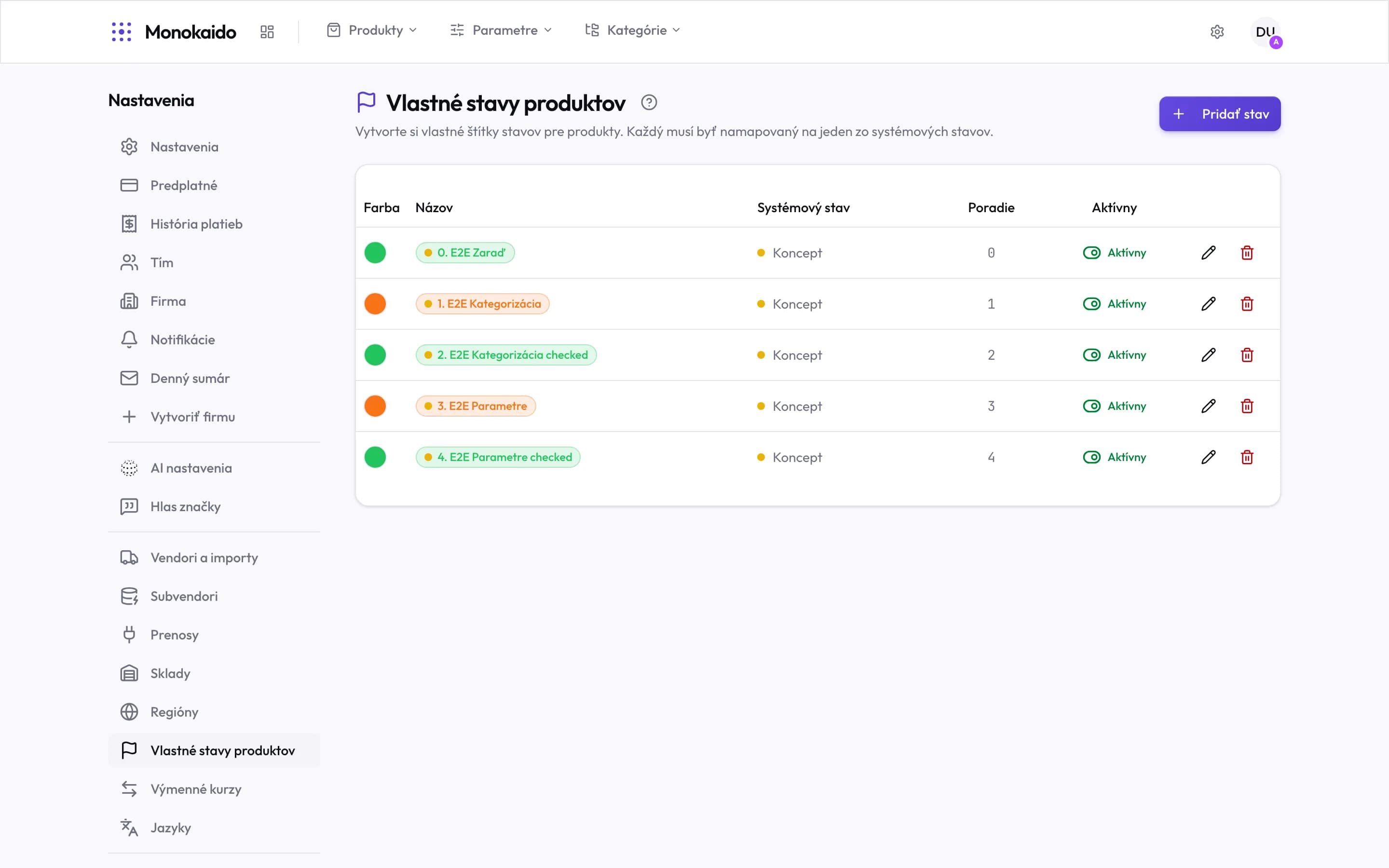
Controls on this screen
- Add status — A new custom status.
- The mapping requirement — Every custom status must map onto one system status. The screen says so outright.
- Colour — Distinguishes it in the product list. Choose so statuses are told apart at a glance.
- Name — Name it after the process step, not with an abbreviation.
- System status — What the custom status corresponds to. It decides whether the product is in the shop.
- Order — Its place in the process. Statuses are offered in this order.
- Active — An inactive status is no longer offered, but products already in it stay.
Why the mapping is required
A custom status is a label for you. The system, though, has to know whether a product wearing it belongs in the shop. So every custom status points at one system status — and that one decides.
| System status | What it means for the shop |
|---|---|
| Draft | The product does not appear in the shop. |
| Published | The product is in the shop. |
| Archived | The product is withdrawn and kept only as a record. |
Where is a custom status set on a product?
On the product detail, or in bulk from the product list.
I deleted a status — what about its products?
They stay but lose the label. Deactivating the status is safer.