

Storefront design
The storefront design editor: home page sections, shop style, colours, corner radius, buttons, Monokaido AI proposals and publishing.
On this page
- How the editor is laid out
- The company default design and a storefront's design
- Sections
- Page layout
- Banner sizes and section appearance
- Contact form section
- Header and footer
- Design
- Shop style
- Settings groups
- Inquiry form
- A proposal from Monokaido AI
- Saving, publishing and versions
- Advanced mode for a developer
- Switching a storefront to Storefront v2
The Storefront Builder is the editor where you put together the look of your shops on Storefront v2 — from the order of the home page sections to the corners of the buttons. Open it from E-commerce → Storefront Builder (Opens in a new tab) or with the Edit design button next to a storefront in the Storefronts (Opens in a new tab) list. You see every change in the live preview at once; customers see it only once it is published.
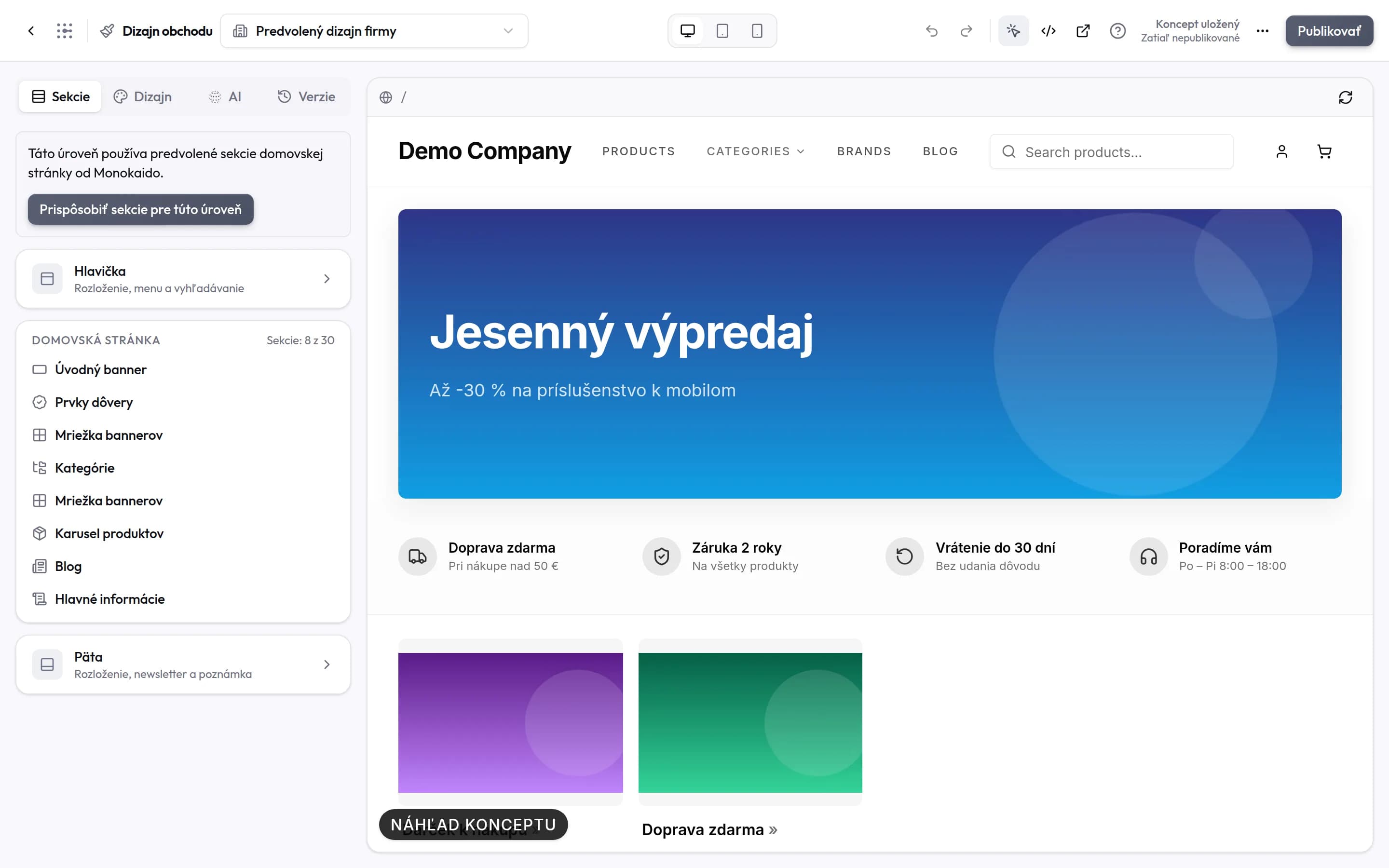
Controls on this screen
- Level — The company default design or one storefront. The list shows unpublished changes and the number of deviations.
- Preview width — Desktop, tablet or mobile — the preview redraws at that width.
- Undo and redo — Ctrl+Z and Ctrl+Shift+Z (⌘Z and ⇧⌘Z on a Mac). They also take back moving or deleting a section.
- Select sections in the preview — On: clicking a section in the preview opens its settings. Off: you browse the shop in the preview normally.
- Manual — Opens this chapter in a new tab.
- Publish — Only now do customers see the changes. The draft status sits to the left of the button.
- Tabs — Sections, Design, AI and Versions.
- Customize sections — Until you press it, the level takes its section list from the inherited design.
- Header and footer — Open the header and footer settings — layout, menu, search, newsletter, note.
- Home page sections — A click opens a section’s settings. Drag to reorder; the eye hides a section.
- Live preview — The real shop with your catalogue and the design in progress. A click on a section opens it in the editor.
How the editor is laid out
The editor opens full screen. The arrow at the top left takes you back to the storefront list — your unsaved changes are saved on the way.
| Part | What it holds | Note |
|---|---|---|
| Top bar | The level picker (the company default design or one storefront), the preview width (desktop, tablet, mobile), Undo, Redo, Publish. | The question mark opens this chapter. More actions (three dots) offers Save and Discard changes. |
| Left panel | The Sections, Design, AI and Versions tabs. | Each is described below. |
| Preview | The real shop with your catalogue and the design you are working on. | The preview needs at least one storefront. Without one you can still edit the design, you just cannot see it yet. |
On a phone the editor and the preview do not fit side by side — switch between them with the Editor and Preview buttons above them.
The admin and editor roles can edit the design. The viewer role can only look at it.
The company default design and a storefront's design
The design has two levels, which you switch in the top bar:
- The company default design applies to every storefront at once. Whatever you leave unchanged here comes from the standard Monokaido look.
- A single storefront changes only what should differ from the company default. Everything else is inherited, so a change to the default design shows up there as well.
A field overridden at this level carries a dot next to its name and a Reset to inherited button. The level list shows for each level whether it has unpublished changes and how many deviations from the inherited design it has. An inactive storefront is marked “(inactive)”.
Sections
The Sections tab shows the page as a tree: Header, the home page sections and Footer.
- Change the order by dragging a section by the handle on its left — or with the keyboard: Space picks it up, the arrow keys move it and Space drops it. The section menu (three dots) also offers Move up and Move down, Duplicate, Add a section below this one and Delete.
- The eye hides a section; its settings stay.
- Add section opens the section types — hero banner, banner grid, categories, product carousel, text, image with text, blog, newsletter, contact form, spacer and more. The new section goes after the section you opened last, otherwise at the end of the page. A home page can have up to 30 sections.
- Click a section — in the tree or right in the preview — to open its settings; the arrow takes you back to the tree. The preview outlines the section you are working on and scrolls it into view. To click around the shop in the preview normally, switch off Select sections in the preview in the top bar.
Page layout
The Page layout button above the tree offers ready-made sets of home page sections. Each card draws a sketch of the page and says how many sections it brings. You then adjust the set like any other section list.
| Layout | What it holds | Note |
|---|---|---|
| Standard | The original layout: hero banner, benefits, banners, categories, new arrivals, the blog and the main information. | The same as the default sections from Monokaido. |
| Showcase | A large full-width banner, a product grid, a pair of banners, categories and an image with text. | |
| Catalogue | A low banner, 12 categories, benefits, three rows of banners, new arrivals and the blog. | For shops with a wide range. |
| Brand story | A full-screen banner, an intro text, two image-with-text blocks and selected products. | |
| Simple | A banner, a product grid and the benefits. |
A layout invents nothing: banners, categories and products come from the shop, and sections with your own text or image show in the shop only once you fill them in (until then the preview shows them as an empty placeholder). A layout brings the Blog section only with the Blog add-on. A layout replaces the level's whole section list — if you have already edited it by hand, the editor asks first. Undo brings the previous list back.
The section list is inherited as a whole. Until you change it at a level, the level uses the sections of the company default design; Customize sections for this level makes an own copy, and Reset sections to inherited drops it again.
Some sections take their content from other parts of the admin:
| Section | Where its content comes from | Note |
|---|---|---|
| Hero banner, Banner grid | From Banners, by the location you pick — or your own image and text right in the section. | A banner’s validity and target are set on the banner. |
| Newsletter | A sign-up form for news. The contacts who sign up are in Newsletter. | The footer form is switched on in the Footer settings. |
| Contact form | A form through which shoppers write to you. The messages sent are in Contact forms. | The form's fields are set in the section — see Contact form section. |
| Blog | The latest blog posts. | Only with the Blog add-on — see Add-ons: E-shop and Blog. Without it the section says “Not shown in the shop”. |
Banner sizes and section appearance
A section's settings are grouped into Content, Layout and size and Section appearance. Fields that do nothing with the current settings are hidden.
| Section | What you set | Note |
|---|---|---|
| Hero banner | The style (full width or boxed) and the height: small, medium, large, full screen or a custom height in pixels. | "Automatic" keeps the current look. Applies to CMS banners and to your own image alike. |
| Hero banner with your own image | Heading, subheading, two buttons, a desktop and a mobile image, horizontal and vertical alignment, image darkening. | Only with the "Own image and text" source. |
| Banner grid | Title, number of columns, height (also custom, in pixels), gap, image fit and the banner text. | The banners come from the CMS location you pick. |
| Product carousel | A carousel or a grid, in a grid also the number of columns, and the "View all" link. | |
| Every section | Padding at the top and bottom, a colour scheme or your own colours, the content width and showing it everywhere, on desktop only or on mobile only. | The "Section appearance" group. |
Contact form section
The Contact form section adds to the home page a form through which shoppers write to you — in a shop that sells normally, too. Every message is stored in Contact forms; in their list the section goes by its heading. A page can hold several such sections, each one a form of its own.
| Field | What you set | Note |
|---|---|---|
| Heading, Subheading | The text above the form. | An empty heading uses the shop’s default text (“Contact us”). |
| Send button text, Message after sending | The button text and the thank-you the shopper sees once the form is sent. | Empty fields use the shop’s default texts. |
| Name, Phone, Company, Message | For each field Required, Optional or Hidden. | By default: name and phone optional, company hidden, message required. The e-mail is always required and cannot be hidden. |
Texts are entered per storefront language. In the builder preview you can try the form, but nothing is sent or stored.
Header and footer
The Header and Footer rows in the tree open their settings — the same ones as the Header and Footer groups in the Design tab. For the header you set the layout, the navigation (category bar or mega menu), search, the announcement bar and whether the header stays on top while scrolling. For the footer the layout, a note, the newsletter sign-up, trust elements and the “Powered by Monokaido” line. Texts such as the footer note are entered per storefront language.
Design
The Design tab sets the look of the whole shop: style, colours, type, shapes.
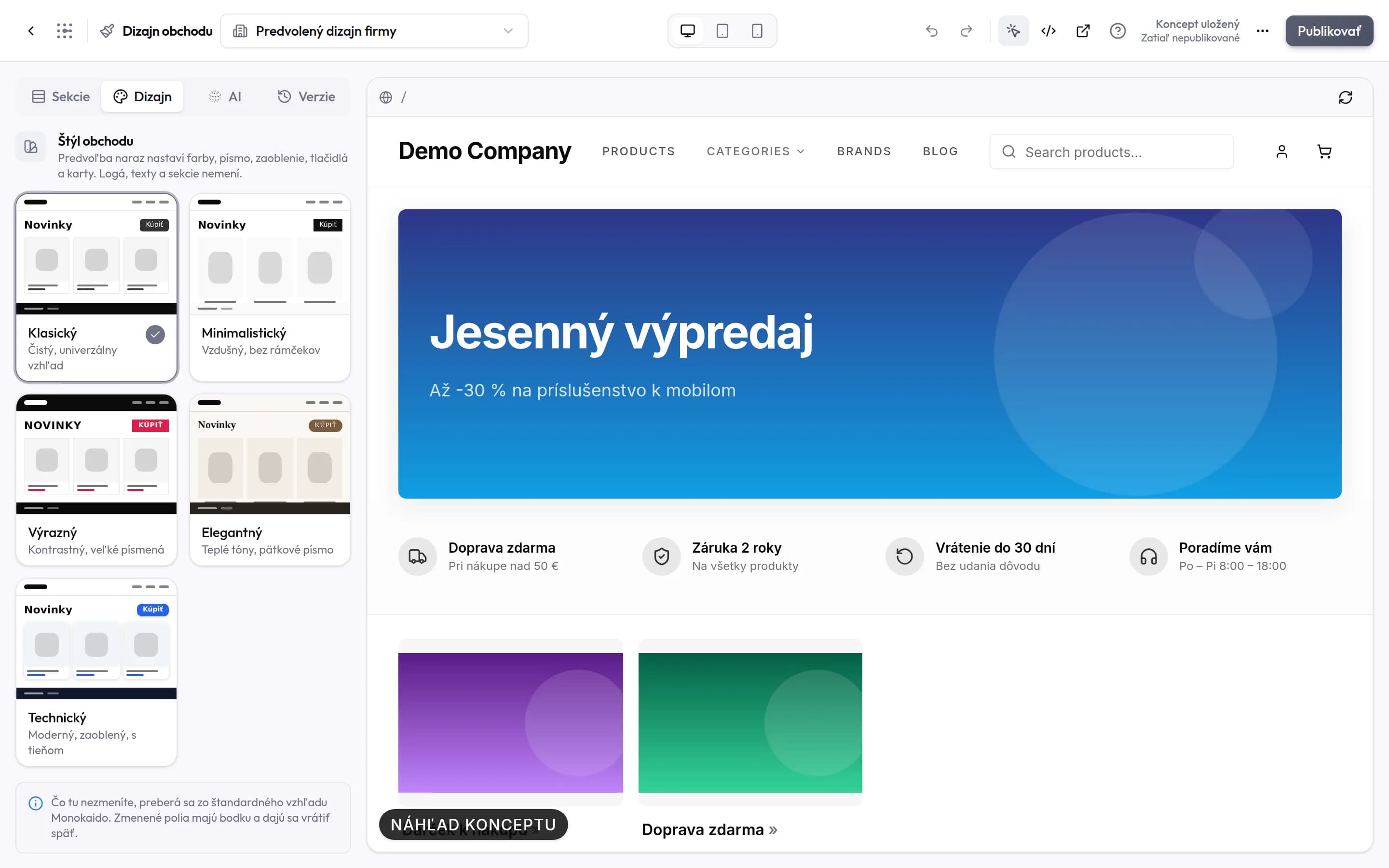
Controls on this screen
- Shop style — A preset sets colours, fonts, corners, buttons and cards at once. It leaves logos, texts and sections alone.
- Active preset — The tick and the outline show the style the level has now. After a manual edit none is active.
- Miniature — Each card draws a heading, a button and a product card the way they will look — type and corners included.
- Inheritance — Whatever you leave unchanged comes from the inherited design. Overridden fields carry a dot and can be reset.
- Preview — Colours, corners, buttons and the product card change at once, without redrawing the page.
Shop style
A preset sets colours, fonts, corners, buttons and product cards at once. It leaves logos, texts and sections alone. Each card in the gallery draws a miniature of the shop — a heading, a button and a product card — the way they will look.
| Preset | Look | Note |
|---|---|---|
| Classic | A clean, versatile look. | In a storefront it means “like the company default design” — it resets the preset fields to inherited. |
| Minimal | Airy, no borders. | |
| Elegant | Warm tones, serif type, buttons in capitals. | |
| Bold | High contrast, square, uppercase. | |
| Tech | Modern, rounded, shadowed. | |
| Noir | Dark surfaces, light text, a gold accent, serif headings. | Product photos keep their white background. |
| Fashion | Black and white, headings in capitals, tall product photos. | |
| Natural | Earthy green tones, softly rounded shapes, round buttons. | |
| Playful | Vivid colours, very rounded, buttons with a shadow. | |
| Sport | Energetic, a dark header and footer, headings in capitals. | |
| Soft | Pastel pink tones, serif headings, round buttons. | |
| Nordic | Calm greys, plenty of space, no borders. | |
| Vintage | Cream paper, terracotta, serif type. |
The gallery shows six styles first; Show all styles opens the rest. The styles from Noir to Vintage set the whole colour palette, so they look the same whatever the colours of the company default design.
If you have already changed any of the preset's fields by hand, the editor asks before applying it and lists the fields the preset overwrites. Once you edit a field a preset sets, no card is marked active any more — from then on the style is your own.
Settings groups
Below the style are the groups, which open with a click. A collapsed group shows how many of its fields are overridden at this level (for example “Overridden: 2”).
| Group | What you set | Note |
|---|---|---|
| Colours | The primary colour and the text on it, background, text, muted surfaces, borders, and the header and footer colours. | An empty primary colour uses the accent colour from Shop settings. |
| Typography | The heading and body fonts, the font size, and the weight and case of headings. | |
| Corner radius | Separately for inputs, menus and dialogs; cards and product photos; banners and images; the Sale and New badges. | In pixels, with a slider or a number. 0 gives sharp corners. |
| Buttons | Corner radius, font weight, letter case and the main button’s shadow. | A high value makes the button fully rounded. |
| Layout | The content width and the spacing between sections. | |
| Logo | A logo for light and one for dark backgrounds. | |
| Header, Footer | The same settings as in the section tree. | See Header and footer above. |
| Product card | The image aspect ratio and fit, border width, shadow, text alignment, the brand and the hover effect. | |
| Inquiry form | The form a catalog shows in place of the buy button. | Catalog mode only — see Inquiry form. |
Changes to colours, corners, buttons and the product card show in the preview at once, without redrawing the page — drag a slider and watch the result.
Inquiry form
A storefront in catalog mode does not sell — in place of the buy button the product page can offer an inquiry form. You set it up in the Inquiry form group of the Design tab. The group shows only while catalog mode is on: for a storefront, when this storefront is a catalog; in the company default design, when at least one of your storefronts is.
| Field | What you set | Note |
|---|---|---|
| Show the inquiry form | Switches the form on on the product page. | Off = nothing in place of the buy button. |
| Display | Button + dialog: a button that opens the form in a dialog. On the page: the form right on the product page, in place of the buy button. | Button + dialog by default. |
| Button text, Heading, Text above the form | The texts of the button and the form. | Empty fields use the shop’s default texts (“Ask about this product”, “Product inquiry”). |
| Send button text, Message after sending | The button text and the thank-you after sending. | |
| Name, Phone, Company, Message, Quantity | For each field Required, Optional or Hidden. | By default: name, phone and message optional, company and quantity hidden. The e-mail is always required. |
An inquiry carries the product and the variant the shopper had selected. The inquiries sent are in Contact forms. A shop style (preset) does not change the form settings.
A proposal from Monokaido AI
In the AI tab you describe what you want to change — “an elegant dark design with gold accents”, say — and Monokaido AI proposes a new design for this level. The proposal shows what changes and how many fields, and nothing is saved until you use Apply proposal. If you changed the same fields while the proposal was being prepared, the editor asks before overwriting them; Undo brings them back.
A proposal needs AI to be available — Monokaido AI or your own provider (see Two routes to AI). With Monokaido AI it draws on your AI tokens; with your own provider you pay the provider directly.
Saving, publishing and versions
Changes are saved to a draft
Every change saves itself to the draft and the preview redraws in place, without jumping to the top of the page. Unsaved changes are saved when you leave the editor too; if they cannot be saved, the editor first asks whether to leave without saving.
Undo and Redo
Undo (Ctrl+Z, ⌘Z on a Mac) and Redo (Ctrl+Shift+Z, ⇧⌘Z on a Mac) also take back moving or deleting a section and applying a preset or an AI proposal.
Publish
Customers see the design only after Publish. You can add a note to the version, such as “Autumn campaign”. The company default design is published to every storefront — except where a storefront sets something differently.
Discard changes (in more actions) takes the draft back to the published version. The Versions tab shows the history of published versions with their author and note; Restore to draft loads an older version into the draft, and it goes live only with the next publish.
Advanced mode for a developer
The Advanced mode button in the top bar (your browser remembers it) reveals the fields for Tailwind classes and custom CSS:
- in the Design tab, the Advanced group: custom CSS and classes for the
header, footer, main content, product card, buttons and section headings —
each field shows which element of the shop it applies to (e.g.
.sf-slot-header), - in the settings of every section, Section classes (the element
[data-sf-section="…"]).
The classes are compiled on the storefront itself — variants (md:, hover:)
and arbitrary values (py-[72px]) work too. Separate them with spaces, with no
quotes, braces or semicolons. An invalid field is not saved, and the editor
shows next to it what is wrong.
Switching a storefront to Storefront v2
The editor designs Storefront v2 — the new storefront with a visual editor for the design, blocks and banners. A shop still running on the classic storefront does not show the design from the editor. Switch Storefront v2 on:
- when creating it — in the Create Storefront dialog, with the Built-in Storefront on, switch on Storefront v2 (new, with the builder); once it is created, Open the builder takes you straight to the editor,
- in the storefront settings — the Storefront v2 switch under "Storefront Enabled" (the storefront's card in the list offers a Try Storefront v2 link),
- right in the editor — a storefront on the classic storefront shows a bar with a Switch on Storefront v2 button.
Storefronts on Storefront v2 carry a v2 badge in the list at E-commerce → Storefronts (Opens in a new tab) and an Edit design button that opens the editor for that storefront. Switch back to the classic storefront in the storefront settings. A storefront's domain, language, currency and access key are covered in Storefronts and access keys.
I changed the design but the shop does not show it.
Changes stay in the draft until you click Publish. If you did publish, check that the shop runs on Storefront v2 — the classic storefront does not show the design from the editor.
How do I take one storefront back to the company default design?
Reset the fields with a dot with Reset to inherited, the style with the Classic preset and the sections with Reset sections to inherited. Then publish.
Does a preset overwrite my logo or texts?
No. A preset changes only colours, fonts, corners, buttons and product cards.
Can I go back to an older design?
Yes. Pick the version in the Versions tab, restore it to the draft and publish.