

Merging duplicates
How the system finds the same product across several vendors, what exactly a merge does, and how to undo it.
On this page
- Linking versus merging
- The module at a glance
- Automatic detection
- Manual search and saved searches
- Which fields can be compared
- Why save a search
- Suggestions: what to do with a found pair
- Linked duplicates
- Merging a single pair
- What the strategies mean
- Parameter by parameter
- Price and stock
- Bulk merge from a pattern
- A partial result is a normal outcome
- Merge templates
- History and undoing a merge
- What exactly comes back
- Limits, permissions and constraints
- Who may do what
- Numeric limits
This module solves one situation: the same physical product arrives from several vendors' feeds as several separate records. The system offers two different answers to that, and it matters not to confuse them.
Linking versus merging
| Operation | What it does | Reversible? |
|---|---|---|
| Link (duplicate reference) | Both products go on existing. The secondary one simply stops appearing in the shop and carries a reference to the primary. Nothing is copied. | Any time, with Remove link. |
| Merge | The secondary's variants, images, parameters and categories move into the primary. The secondary is archived. | Yes — through Undo merge, with conditions. |
The primary product is the one that survives a merge. The secondary is the one that gets archived. That split decides everything else, which is why the manual returns to it in several places.
The module at a glance
You will find it under Products → Duplicates (Opens in a new tab). It opens on the Overview tab.
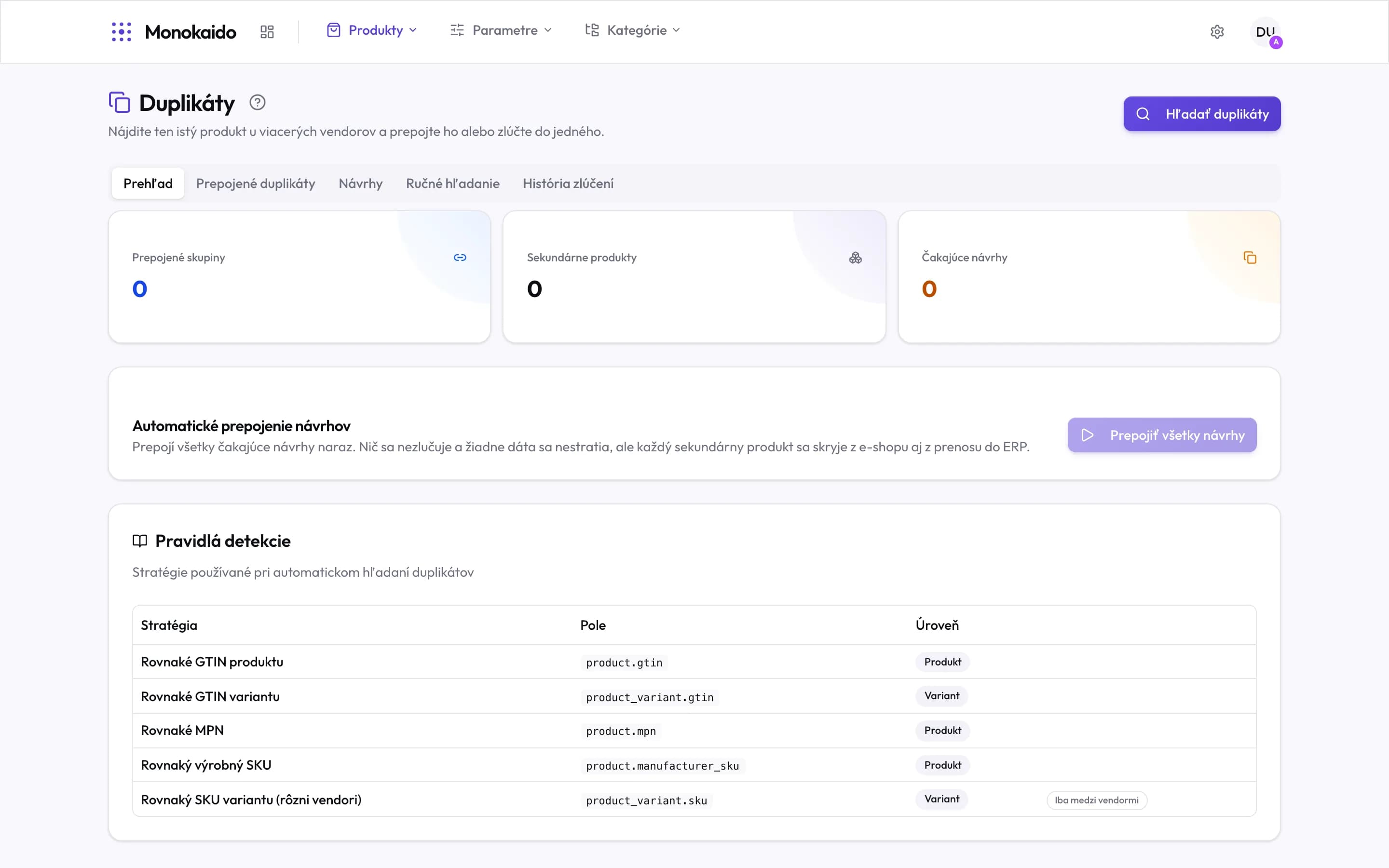
Controls on this screen
- Find duplicates — Runs automatic detection across the whole catalogue.
- Overview — The state of the module and the detection rules.
- Linked duplicates — Pairs that are already linked.
- Suggestions — The queue of found pairs waiting for your decision.
- Manual search — Searching by fields you choose, plus saved searches.
- Merge history — What can still be undone, plus the permanent log.
- Linked groups — How many pairs are linked but not yet merged.
- Secondary products — How many products are currently hidden as secondaries.
- Pending suggestions — How many pairs are waiting for a decision on the Suggestions tab.
- Link all suggestions — Links every pending suggestion at once. It links, it does not merge.
- Detection rules — The five strategies and the field each one compares.
Automatic detection
Find duplicates walks the catalogue with five strategies. Each compares one specific field and carries its own level of certainty:
| Strategy | Field | Level | Certainty |
|---|---|---|---|
| Same product GTIN | product.gtin | Product | 95 % |
| Same variant GTIN | product_variant.gtin | Variant | 90 % |
| Same MPN | product.mpn | Product | 80 % |
| Same manufacturer SKU | product.manufacturer_sku | Product | 75 % |
| Same variant SKU | product_variant.sku | Variant | 60 % |
A GTIN is a globally unique barcode, hence the highest certainty. A variant SKU, by contrast, is invented by each vendor, so a match can be pure coincidence — that is the reason for 60 %, and also for the rule that this strategy only compares across vendors, never within one. On screen it carries the Vendors only label.
Manual search and saved searches
When automation is not enough — because two vendors put their identifiers in mismatched fields, say — use manual search.
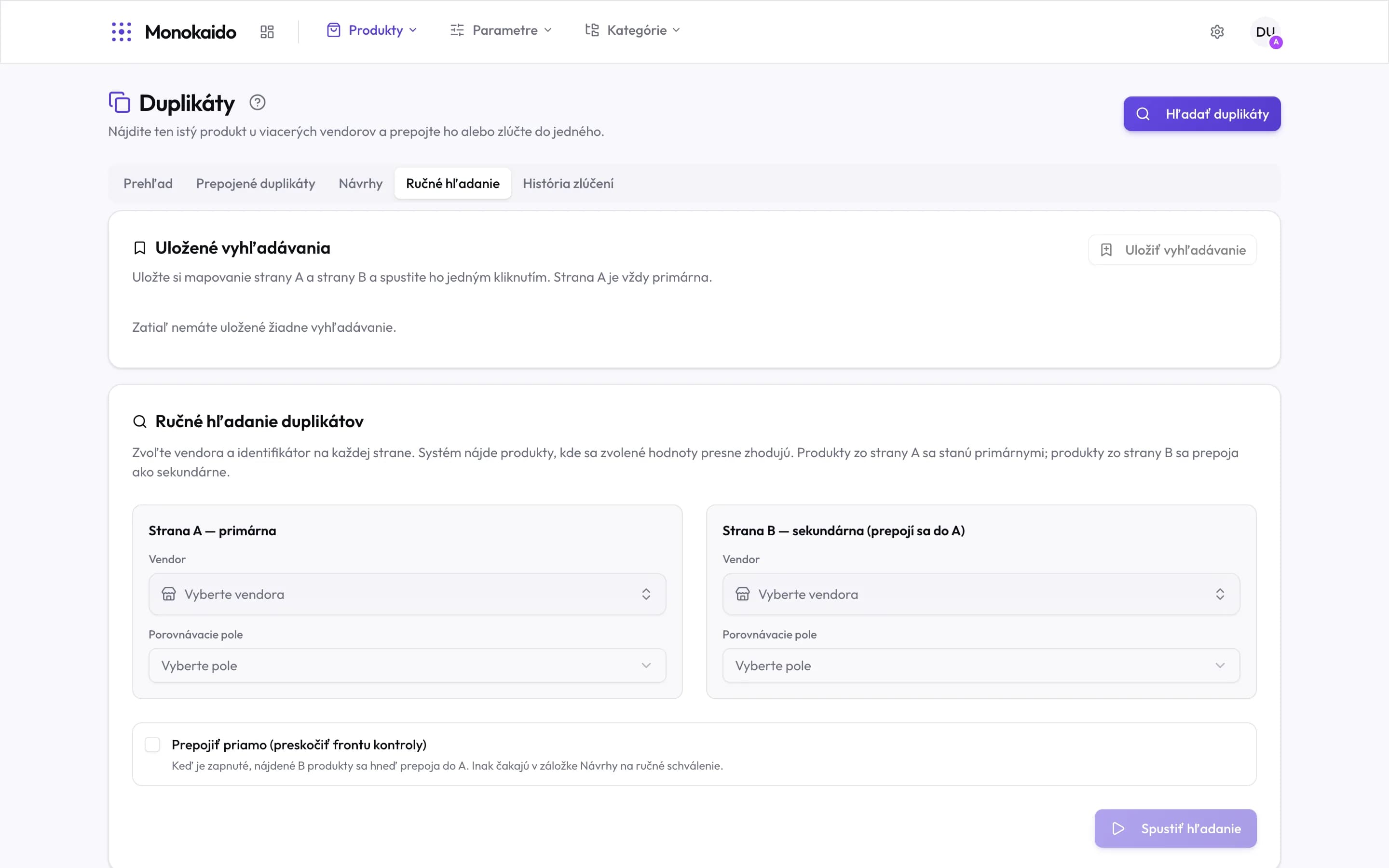
Controls on this screen
- Save search — Stores the current form. Enabled once the form is filled in.
- Saved searches — Each shows when it last ran and how many matches it found.
- Side A — primary — Products from this side become the primaries, so they survive.
- Side A vendor — The vendor whose products are treated as primary.
- Side A comparison field — Which identifier to compare.
- Side B — secondary — These products attach to side A as secondaries.
- Side B vendor — It need not be a different vendor, though usually it is.
- Side B comparison field — It need not be the same field as side A — that is the point of manual search.
- Link directly — Skips the Suggestions queue and links the found pairs immediately.
- Run search — Runs a one-off search without saving it.
Which fields can be compared
Each side offers eleven fields, and they need not match — that is exactly the power of manual search: vendor A's GTIN against vendor B's variant SKU.
- At product level: code, external ID 1–3, GTIN / EAN, MPN, manufacturer SKU, name.
- At variant level: variant SKU, variant GTIN, variant external ID.
Why save a search
The right mapping for a particular catalogue is knowledge that otherwise lives in one person's head. A saved search records it, and turns the search into one click. It also removes the most common mistake: swapping sides A and B, which quietly inverts which product becomes the primary.
Suggestions: what to do with a found pair
The queue of found pairs is on the Suggestions tab. Nothing happens here on its own — every pair waits for your decision. Each row offers three actions:
Reject
The pair is not a duplicate. It leaves the queue and detection will not propose it again.
Link
You confirm it is the same product, but nothing is copied and nothing is archived. The safest choice.
Compare and merge
Opens the single-pair merge screen.
Each pair shows the match type — which rule found it, and the actual value — and the certainty from the table above. The row checkboxes select pairs for a bulk merge; the selection survives paging.
Change the order of the pairs in the drop-down above the table: Newest first and Oldest first by when the pair was found, Most products and Fewest products in the group, Primary product A → Z and Z → A alphabetically by the name of the product in the first column — capitals and diacritics do not scatter the order. Alphabetical order puts similar products next to each other, so they are easier to tick for a bulk merge.
Linked duplicates
The Linked duplicates tab holds the pairs you confirmed but have not merged. Each row shows the primary, the secondary (hidden in the shop) and the match type that created the pair. From a link you can move to a merge at any time, or remove it — which puts the secondary back in the shop.
The list deliberately hides pairs where one product has already been archived by a merge. Such a row would offer buttons that cannot succeed.
Merging a single pair
The comparison screen is where you decide exactly what the resulting product looks like. Field by field you pick the value the result keeps, and switching the primary source decides which product survives the merge.
What the strategies mean
| Area | Choice | Result |
|---|---|---|
| Variants | Combine all | Every variant of the secondary is added to the primary, with its prices and stock. |
| Take from source | Only one chosen product's variants are kept. | |
| Parameters | Merge all | The parameters of both are combined. Where the same parameter carries different values, both remain. |
| Prefer one product | A parameter the chosen product has is taken from it alone. Parameters it lacks are filled from the other products. | |
| Per parameter | The Take from column — see Parameter by parameter below. | |
| Price and stock | Take from A / B | The variants' prices and stock — see Price and stock below. |
| Images | Add the secondary's images | The primary's gallery gains the secondary's images. |
| Keep only the primary's images | Nothing is copied. The main-image choice is hidden then — it would have nothing to do. |
Parameter by parameter
The parameter table has a Take from switch at every parameter:
| Choice | Result |
|---|---|
| Default | The parameter setting above the table applies (merge all / prefer one product). |
| A, B | Only the chosen product's values are kept. |
| A+B | The values of both products are kept. |
The letters always follow the role: A is the product that survives the merge (the primary), B is the other one. Values the merge does not keep are struck through in the table, so you see the result before merging.
- When the chosen product has no value of the parameter, the choice does not apply and the default is used — a merge never empties a parameter.
- Values the merge removes from product A are recorded as suppressed, so the next feed sync of product A does not bring them back. Undoing the merge restores them.
Price and stock
The Price and stock card shows both products' prices and stock and decides where the resulting product's variants take them from: the price from A or B, the stock from A, B or both.
- It only works while the resulting product keeps product A's variants (Variants → Take from source → A). Variants taken from another product bring their own price and stock, so the card is inactive otherwise.
- Prices and stock are copied to the variants of A that have a matching variant of B — the same EAN, code or variant options, or automatically when each product has a single variant. A variant without a match keeps its values.
- Stock "from both" adds product B's warehouses to A's variants (A's stay). Stock "from B" gives A's variants B's warehouses and sets A's other warehouses to zero.
Bulk merge from a pattern
With dozens of pairs, clicking each one is unthinkable. So a bulk merge works differently: you configure it once on one sample pair, and the system repeats that same recipe across everything you selected.
A partial result is a normal outcome
One bad pair does not cancel the other ninety-nine — pairs already merged stay merged. That is why a run reports each pair separately: merged, skipped (with a reason) and failed (with the message).
| Skip reason | What it means |
|---|---|
| Record no longer found | The suggestion disappeared in the meantime — a colleague resolved it, for instance. |
| Suggestion already resolved | The pair is no longer in the "pending" state. |
| Group does not contain two products | The suggestion lost a member, so there is no pair to form. |
| Group has too many products | One merge handles at most 10 source products. |
| A product no longer exists | The product was deleted in the meantime. |
| Product was archived | Another merge archived it first. |
| Product already merged in this batch | Two selected pairs shared the same product. |
| Kept as the result in this batch | The pair would archive a product that an earlier merge in the same batch kept as its result. That would make it impossible to undo, so it is skipped. |
Merge templates
When you keep merging the same vendor pairs the same way — for example title from A, description from B, price from B, stock from both, colour always from B — save the setup as a template and apply it to the next merge in one click.
Set up the merge
On the comparison or the bulk-merge screen, set the fields, variants, price and stock, parameters and images.
Save it as a template
In the Merge template card, click Save as template, enter a name and check the summary of what the template stores.
Apply it to the next merge
Pick the template in Apply a template… — it sets every choice at once. You can still adjust them before merging.
A template stores the choices by side (A = the product that stays, B = the other one), not by product, so it fits any pair. It also stores the vendors of the pair it was made on: templates for the current vendor pair come first in the list.
- When a template was saved with the sides the other way round, the comparison screen makes the product of the template's side-A vendor product A, and says so. The bulk merge cannot swap sides — the screen points it out.
- The template you started from can be updated after you change the choices, or saved as a new one.
- A template can only be saved from a merge of two products. It does not store a selection of single images — applying it takes every image of B (or none, if you selected none).
- Manage templates lists them with their use count; rename or delete them there. Deleting one does not affect merges already done.
History and undoing a merge
The Merge history tab holds two lists, answering two different questions:
- Merges that can still be undone — answers “what can I still take back?”. The row disappears once the merge is undone.
- Merge and undo log — answers “what happened here?”. It stays forever.
What exactly comes back
Undoing a merge is a true inverse. It restores:
- the archived secondary products — to the state they were in before the merge (a published product comes back published, not as a draft);
- the primary's original field values;
- the variants, images, parameters and categories the merge added — these are removed;
- the parameter values the merge removed from the primary (a per-parameter choice) and the prices and stock it overwrote;
- the primary's main image, if the merge overwrote it;
- the duplicate links the merge removed or repointed;
- duplicate suggestions go back to pending.
Every one of those steps is guarded so that a newer decision by an admin always wins. If you changed something by hand after the merge, undoing the merge will not overwrite it.
The log, by contrast, never disappears. It is the one record that survives undoing a merge — who did what, when, which products it touched, and whether it came from a bulk run.
Limits, permissions and constraints
Who may do what
| Operation | Role |
|---|---|
| Viewing every tab and the log | Admin, Editor, Viewer |
| Detection, linking, removing links, rejecting | Admin, Editor |
| Manual search and saved searches | Admin, Editor |
| Single-pair and bulk merge | Admin, Editor |
| Applying a merge template | Admin, Editor |
| Saving, renaming and deleting a template | Admin, Editor |
| Reject all suggestions at once | Admin |
| Undo merge | Admin |
Numeric limits
| Limit | Value |
|---|---|
| Pairs in one bulk run | 100 |
| Source products in one merge | 10 |
| Saved searches per company | 50 |
| Merge templates per company | 100 |
| Per-parameter choices in one merge or template | 500 |
| Bulk merge runs | 5 per 15 minutes |
| Detection or manual search runs | 10 per 15 minutes |
| Single-pair merges and undoing merges | 30 per 15 minutes |
If you select more than a hundred pairs, the system stops the selection at a hundred and says so. If a larger number reaches the page address, the first hundred are taken and the screen warns you — merge the rest in a second run.
I merged two products by mistake. Can it be undone?
Yes, through Merge history → Undo merge, but only if you are an Admin and no newer merge over the same products happened since. The newer one has to be undone first.
Why did detection turn up nothing in Suggestions?
Either the catalogue has no matches in the compared fields, or the candidates are already linked or archived — detection skips those. Try Manual search with the pair of fields your vendors actually populate.
What is the difference between “Link all suggestions” and a bulk merge?
Link all suggestions only links — nothing is copied, nothing is archived, and it can be undone at any time. A bulk merge genuinely combines the data and archives the secondary products.
Does a product vanish from the shop if I only link it?
The secondary stops appearing in the shop and in the transfer to an ERP. The primary stays. Removing the link brings the secondary back.